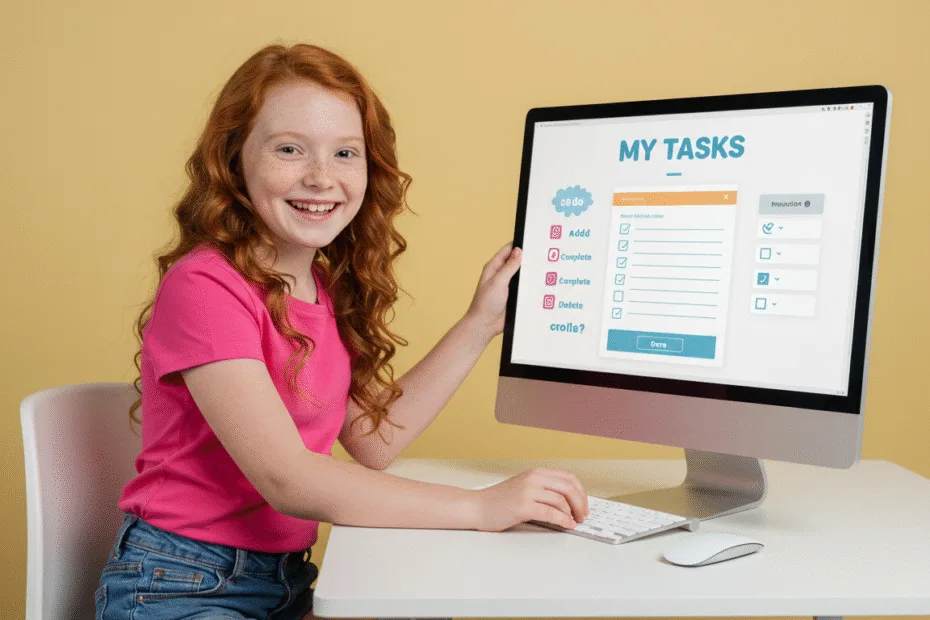
Let’s begin with Lecture 39 of the HTML5 & CSS3 series. Build a To-Do List App – Real-World JavaScript Project. This lecture is for absolute beginners; even kids can follow along and understand.
🎯 Objective:
By the end of this lecture, you will:
- Combine everything you’ve learned so far into a real-world project
- Create a to-do list app that lets users add, remove, and complete tasks
- Use JavaScript arrays , DOM manipulation , localStorage , and event handling
- Make your website truly interactive and persistent
- Have a working, fun-to-use app to share or build upon!
🧱 What You’ll Learn in This Project
| SKILL | USED IN THIS PROJECT |
|---|---|
| HTML Structure | Basic layout with input and list |
| CSS Styling | Clean, colorful design |
| JavaScript Arrays | Store and manage task data |
| DOM Manipulation | Add/remove elements dynamically |
| Events & Event Delegation | Handle clicks on dynamic items |
| localStorage | Save tasks between sessions |
💻 Try This: Build Your Own To-Do List App
Let’s create a new HTML file that displays an interactive to-do list.
Step 1: Create a New File
In your VS Code project folder (MyFirstWebsite), create a new file named:
todo-list.htmlStep 2: Add This Code
<!DOCTYPE html>
<html lang="en">
<head>
    <meta charset="UTF-8" />
    <meta name="viewport" content="width=device-width, initial-scale=1.0"/>
    <title>My To-Do List</title>
    <style>
        body {
            font-family: Arial, sans-serif;
            background-color: #f4f4f4;
            padding: 40px;
        }

        h2 {
            text-align: center;
        }

        .input-group {
            display: flex;
            justify-content: center;
            margin-bottom: 20px;
        }

        input[type="text"] {
            padding: 10px;
            width: 300px;
            border: 1px solid #ccc;
            border-radius: 5px 0 0 5px;
        }

        button {
            padding: 10px 20px;
            background-color: #3498db;
            color: white;
            border: none;
            border-radius: 0 5px 5px 0;
            cursor: pointer;
        }

        ul {
            max-width: 400px;
            margin: auto;
            background-color: white;
            padding: 20px;
            border-radius: 8px;
            box-shadow: 0 2px 5px rgba(0,0,0,0.1);
        }

        li {
            display: flex;
            justify-content: space-between;
            align-items: center;
            padding: 10px;
            border-bottom: 1px solid #eee;
        }

        .completed {
            text-decoration: line-through;
            color: gray;
        }

        .btn-delete {
            background-color: #e74c3c;
            border-radius: 4px;
            padding: 5px 10px;
            font-size: 14px;
        }
    </style>
</head>
<body>

    <h2>My To-Do List</h2>

    <div class="input-group">
        <input type="text" id="taskInput" placeholder="Enter a new task...">
        <button onclick="addTask()">Add Task</button>
    </div>

    <ul id="taskList"></ul>

    <p style="text-align: center; margin-top: 30px;">
        <a href="index.html">Back to Home</a>
    </p>

    <script>
        // Load tasks from localStorage
        let tasks = JSON.parse(localStorage.getItem("tasks")) || [];

        // Show all tasks
        function renderTasks() {
            let taskList = document.getElementById("taskList");
            taskList.innerHTML = ""; // Clear current list

            for (let i = 0; i < tasks.length; i++) {
                let li = document.createElement("li");
                li.innerHTML = `
                    <span class="${tasks[i].completed ? 'completed' : ''}">${tasks[i].text}</span>
                    <button class="btn-delete" onclick="toggleComplete(${i})">✅</button>
                    <button class="btn-delete" onclick="deleteTask(${i})">🗑️</button>
                `;
                taskList.appendChild(li);
            }
        }

        // Add new task
        function addTask() {
            let input = document.getElementById("taskInput");
            let taskText = input.value.trim();

            if (taskText !== "") {
                tasks.push({ text: taskText, completed: false });
                input.value = "";
                saveAndRender();
            } else {
                alert("Please enter a task!");
            }
        }

        // Toggle complete status
        function toggleComplete(index) {
            tasks[index].completed = !tasks[index].completed;
            saveAndRender();
        }

        // Remove task
        function deleteTask(index) {
            tasks.splice(index, 1);
            saveAndRender();
        }

        // Save to localStorage and re-render
        function saveAndRender() {
            localStorage.setItem("tasks", JSON.stringify(tasks));
            renderTasks();
        }

        // Initial render
        window.onload = function() {
            renderTasks();
        };
    </script>
</body>
</html>
Step 3: Run with Live Server
Right-click the code → Show All Commands → Launch Live Server
🎉 You’ve built a fully functional to-do list app that:
- Lets users add new tasks
- Allows them to mark as done
- Enables them to delete tasks
- Remembers tasks using
localStorage
💡 Bonus: Add Keyboard Support
Let users press Enter to submit a task without clicking the button.
Update <input> with onkeypress:
<input type="text" id="taskInput" placeholder="Enter a new task..." onkeypress="handleKeyPress(event)">Add JavaScript Function:
function handleKeyPress(event) {
    if (event.key === "Enter") {
        addTask();
    }
}
Now pressing Enter adds the task — just like real apps!
💡 Bonus: Add a Clear Completed Button
Add this below your input group:
<button onclick="clearCompleted()" style="display: block; margin: 20px auto;">Clear Completed</button>Add this function to JavaScript:
function clearCompleted() {
    tasks = tasks.filter(task => !task.completed);
    saveAndRender();
}
This removes all completed tasks at once!

🧪 Try It Yourself!
- Add a counter that shows how many tasks are left to do.
- Style completed tasks differently using
line-throughand faded colors. - Let users edit a task by double-clicking it.
- Save the last edited time for each task and show it beside the item.
✅ Summary of What You Learned Today
You now know how to:
- Use arrays to store lists of data
- Dynamically add and remove HTML elements
- Use localStorage to remember user data
- Handle events on dynamic elements
- Apply CSS classes based on state (like completed tasks)
- Build a full-featured app from scratch!
🚀 Next Lecture Preview:
In Lecture 40 , we’ll explore HTML5 APIs like the Canvas API — so you can draw shapes, lines, and even simple animations right in the browser — bringing art and logic together!
HTML5 and CSS3 Compleate Series
Stay Updated
If you found this information useful, don’t forget to bookmark this page and Share.